 SlimPic
Compression experiments: texture, text, and transparency
SlimPic guide · Updated October 4, 2026
The same 20KB limit produces different results for different images. We generated three synthetic images and processed them with SlimPic’s actual compression engine. Both original and result files are available so you can inspect them or repeat the experiment.
Method and limitations
Measured 2026-10-04 in Chrome 154.0.8037.97. Inputs: 1200×800 PNG. Target: 20,000 bytes. Output: Auto. Priority: quality. No custom width or height limit. These are generated samples, not photographs of people. The noise sample deliberately contains dense information; it does not represent an average photo or an expected saving. Browser encoder versions can produce different results.
Fine texture


Saved 99.3% · image/webp
Download original PNG · Download compressed result
The noisy texture needs much more data than flat shapes. At this intentionally small target, resolution is reduced substantially. A size success is not a guarantee of useful detail; increase the target when texture matters.
Small text
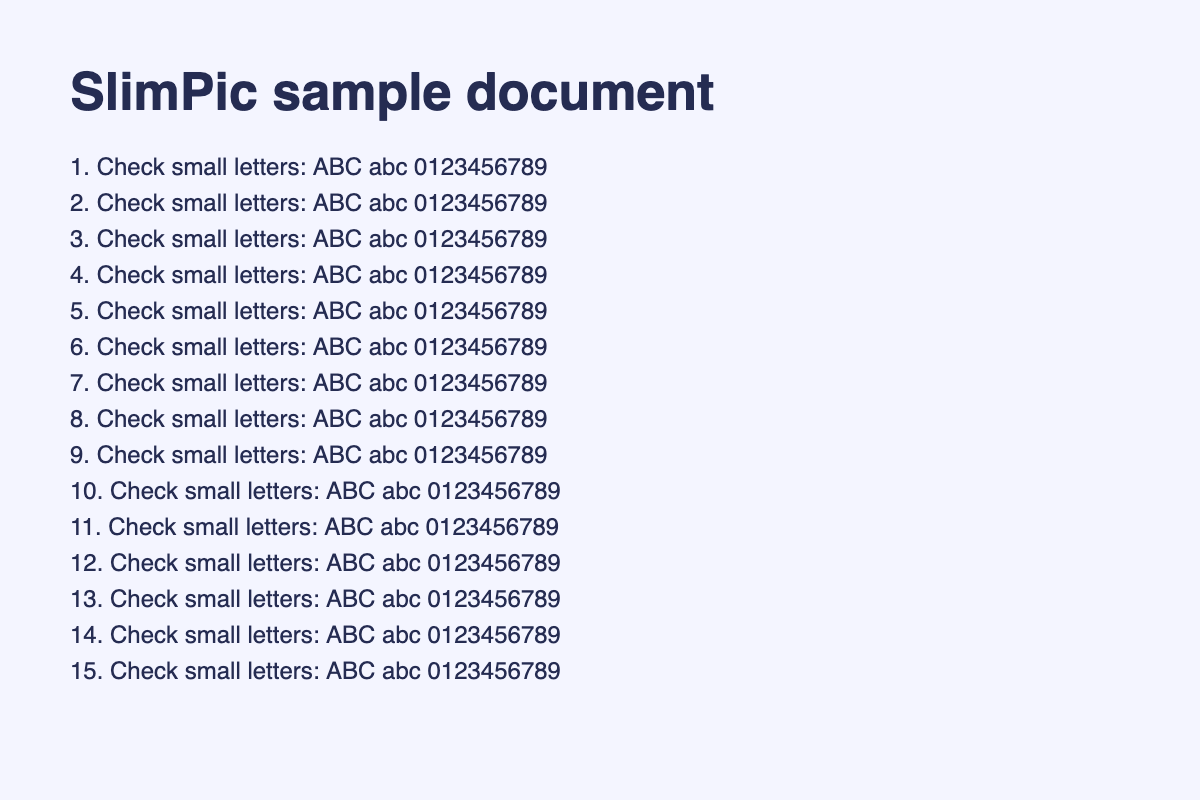
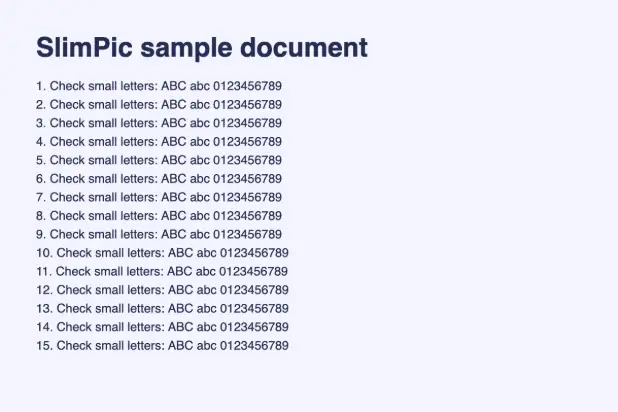
Saved 89.7% · image/webp
Download original PNG · Download compressed result
Read the smallest line at its intended display size. If letters merge, increase the target or choose PNG and compare again. Do not treat readable headings as proof that all small text survived.
Transparent graphic
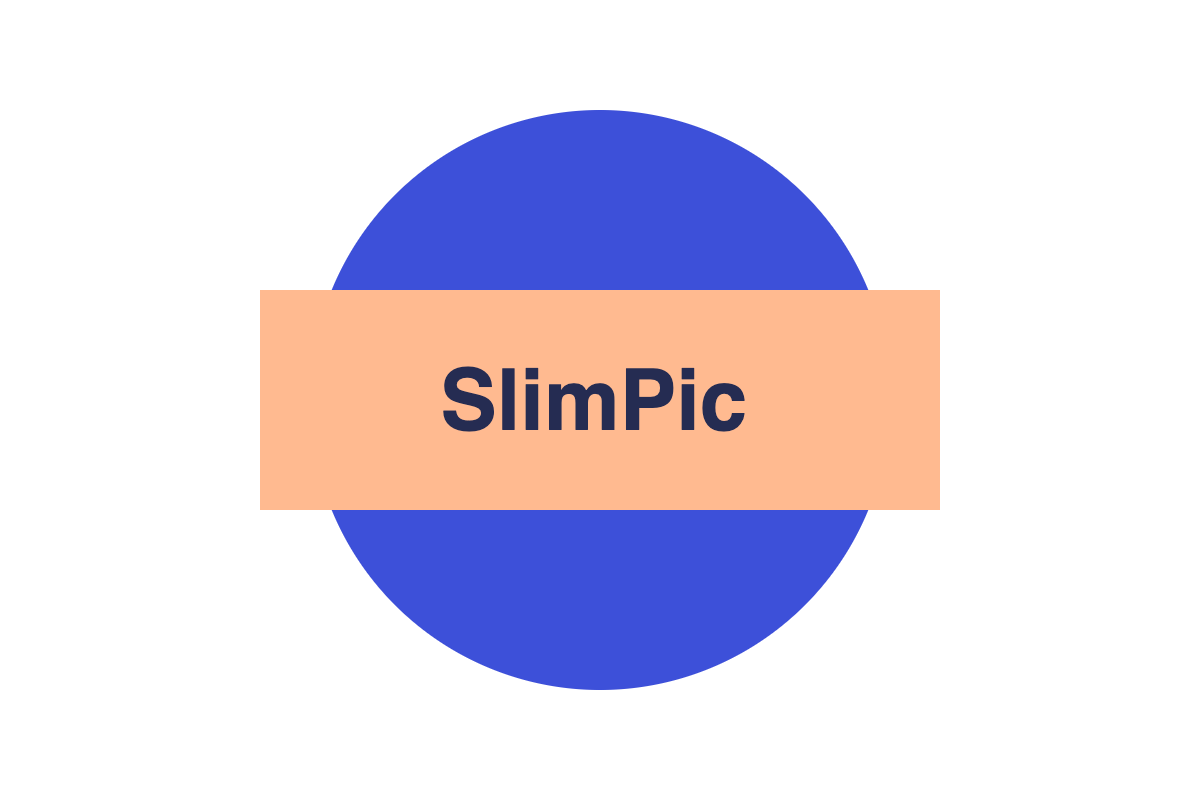
Saved 57.1% · image/webp
Download original PNG · Download compressed result
The checkerboard behind this graphic is a page background, not part of the downloaded file. Inspect the edges on a dark and light background. Choose PNG or WebP when transparent corners are needed.
Repeat the experiment
- Download an original sample and select it on the homepage.
- Enter 20KB, choose Auto output and quality priority.
- Compare the actual bytes and dimensions with this page. Different encoders may not produce identical numbers.
- For your own photos, start from the destination’s allowed maximum. If details are unclear, return to the original and try a larger target.
How SlimPic processes an image
The tool decodes a supported file, searches quality settings, and measures the encoded Blob’s actual bytes. When needed it reduces dimensions while preserving aspect ratio and tries again. An already-small image with no required conversion can be returned unchanged, so a saving of 0% may be normal. PNG output may need smaller dimensions rather than a lower quality setting.
What the measurement does not establish
Bytes and pixel dimensions are measurable; whether text is accurate, a face is recognizable, or a destination accepts the image still requires your review. Unchanged originals may retain metadata. Do not treat this as a location-metadata removal tool. SlimPic generated these samples; you may freely use them for compression comparisons and tool testing.